7 6. Sound design: racks, macros, sends, and the plug-in wall
You’ll have: a filter and a ping-pong delay on the Lead, an effect rack behind them with two fresh macros waiting for you to map, the pad feeding the reverb, and one third-party plug-in loaded on the master — with an honest account of what Claude can and cannot touch on any of it.
7.1 Say
Put an effect rack on the Lead with a filter and a ping-pong delay, and expose cutoff and delay feedback as macros. Send the pad to the reverb return. Load Pro-Q on the master and tell me what you can control.
Ask for it the way you’d ask a person. The interesting part is the answer: two of those four things stop at something only your hands can do, and Claude should say so rather than report them done.
7.2 What Claude does
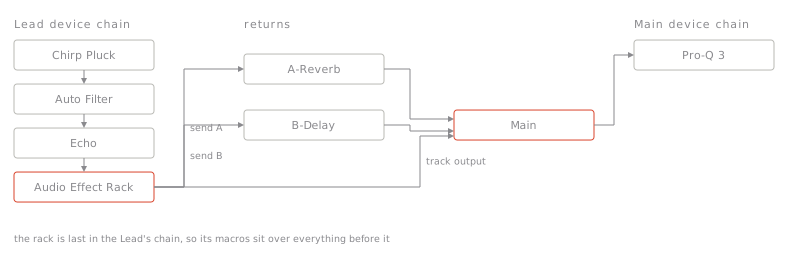
Loads the rack and the two devices from the browser. Everything it loads lands at the end of the track’s chain — it can’t drop a device into a particular slot, or inside the rack — so it reorders them afterwards to put the filter and the delay in front. It adds macros, which arrive two at a time, and then stops: nothing in Live lets a script connect a macro to a knob. It sets the send, selects the master track, loads the plug-in there, reads the plug-in’s parameter list — and tells you the truth about all of it.
7.3 What you’ll see in Live
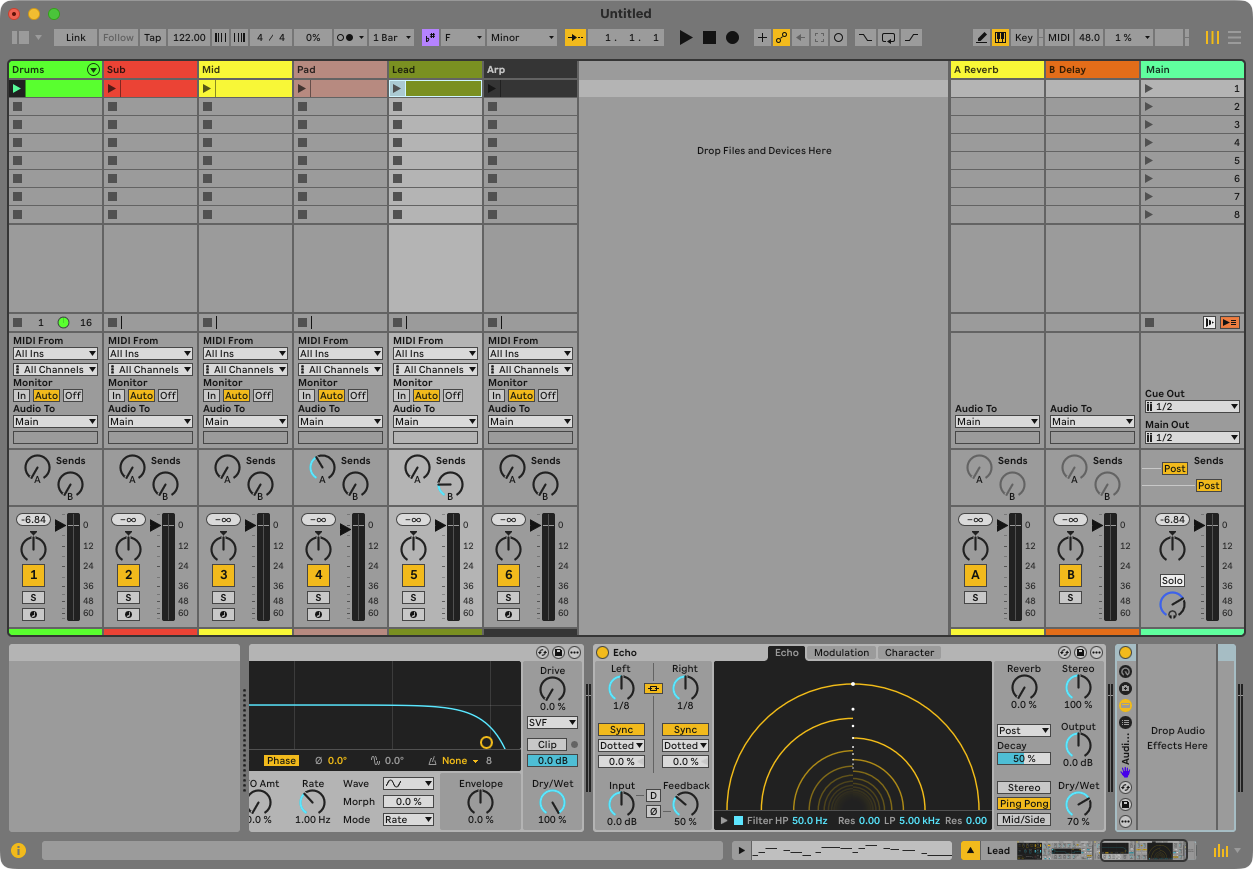
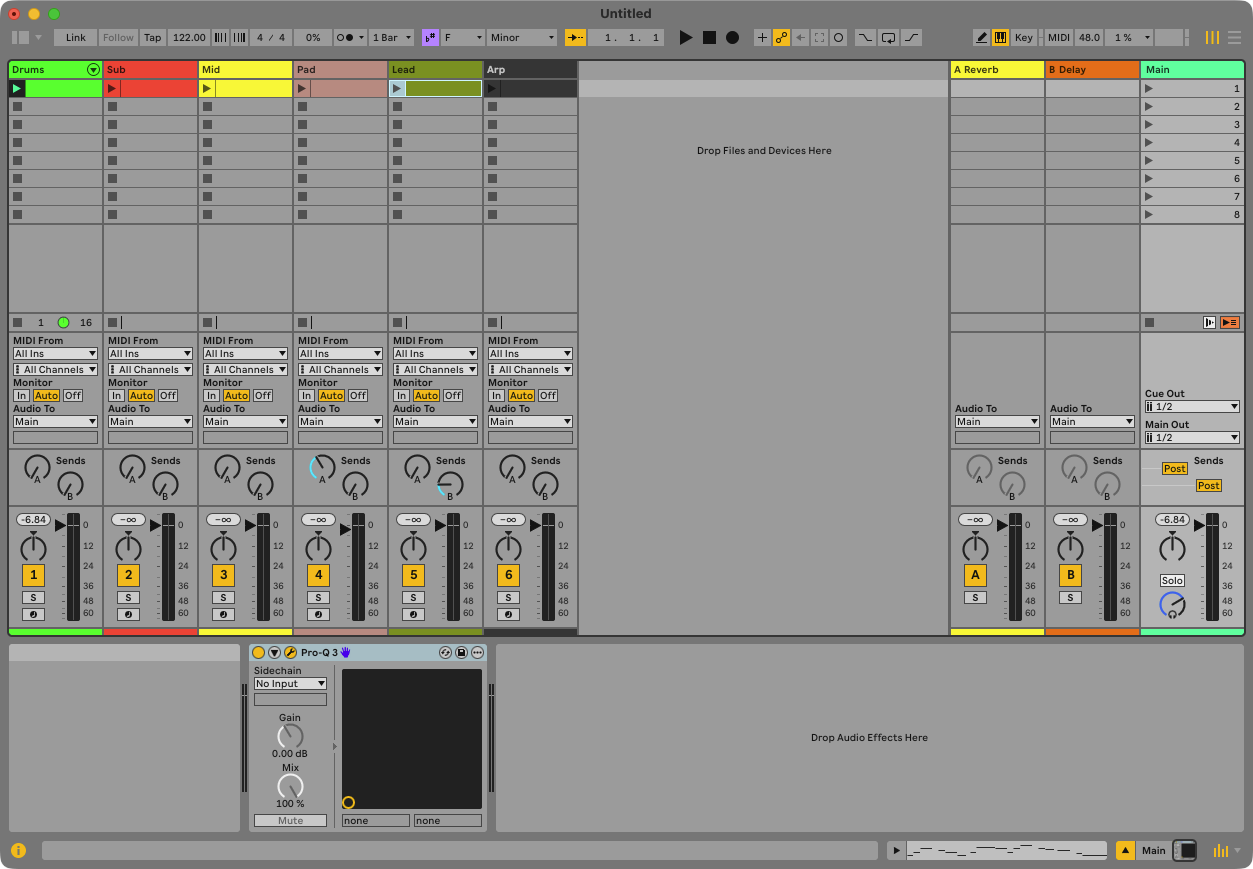
The Lead’s chain reading Drift, Auto Filter, Echo, then the rack — the delay’s Channel Mode set to Ping Pong — and the rack showing two more macro knobs than it had, all of them empty. Drag Auto Filter’s Frequency onto one and Echo’s Feedback onto the other; that is the step Claude hands back to you. On the master, Pro-Q — with only Device On showing in Live’s parameter list until you press Configure on the device and click the controls you want exposed.
7.4 Check
Ask: “how many of the rack’s macros are mapped?” — none, and Claude should say it cannot map them. Make the two drags yourself and ask again: two. Then ask: “what can you change on Pro-Q right now?” — one parameter, out of 358 control names it can read and recite to you. Press Configure, click three controls in the plug-in window, then ask again: three more. Neither the drag nor the button is something Claude can do for you.
Live only shows a plug-in’s controls to scripts once you’ve configured them, and it only connects a macro to a knob when a human drags one onto the other. Claude can read every parameter name the plug-in has and tell you exactly what to expose and what to map; it cannot press the button or make the drag. Work that ends at a wall should be reported as ending there — anything else you’d discover in ten seconds.